Posts

Getting Start with D365 Business Central Development

Image
  Configure VS Code: Download and Install VS Code Install Extension a.           AL Language extension for Microsoft Dynamics 365 Business Central b.         AZ AL Dev Tools/AL Code Outline for Visual Studio Code Create New Project: In the command palette write AL to get all AL related commands.  To create a new project write AL:GO     Give project path     Select server type A JSON file named lanch.json will be created with the configuration settings. Change the settings as      per your configurations.  To know about the parameters of this configurations visit this url: Launch JSON file - Business Central | Microsoft Learn Now select AL: Download Symbols in the Command Palette. If       If the configuration is ok alpackages will be download. Select the Microsoft_Base_Application to see the available object list.      With ...

How to use D365 BC 2022 AdminTool from Windows PowerShel

Image
The new edition of "Dynamics 365 Business Central 2022" does not include a graphical interface for the admin tool. The command-line admin tool is not very user-friendly. A better alternative is to use "Windows PowerShell ISE". It has some features that make it easier to write commands for the admin tool. Here is how to use it: Write the following script in PowerShell and run it. It will open the admin tool in PowerShell.  Then you can choose different commands from the admin tool in the command window to write any script. Import-Module 'C:\Program Files\Microsoft Dynamics 365 Business Central\210\Service\NavAdminTool.ps1' If error execute: Set-ExecutionPolicy -Scope CurrentUser -ExecutionPolicy Unrestricted ·          To get all server configuration: Get-NAVServerConfiguration -ServerInstance BC210 ·          To set server configuration: Set-NAVServerConfiguration -KeyName DeveloperService...

Transfer Files To SFTP Using WinSCP in C#

Image
Install WinSCP from NuGet Package manager Code Example: //sessionOptions.Protocol = Protocol.Sftp; sessionOptions.Protocol = Protocol.Ftp; sessionOptions.HostName = ftpurl; sessionOptions.UserName = ftpusername; sessionOptions.Password = ftppassword; //sessionOptions.SshHostKeyFingerprint = "XXXXXXXXXXXXXXXXXXXXXXXXXXXXXXXX"; Session session = new Session(); session.Open(sessionOptions); TransferOptions transferOptions = new TransferOptions(); transferOptions.TransferMode = TransferMode.Binary; TransferOperationResult transferResult; //This is for Getting/Downloading files from SFTP transferResult = session.GetFiles(DirectoryPath, destinationFtpUrl, false, transferOptions); //This is for Putting/Uploading file on SFTP transferResult = session.PutFiles(DirectoryPath, destinationFtpUrl, false, transferOptions); transferResult.Check();

PGP Encryption and Decryption in C#

Image
Add package called PgpCore from NuGet Package manager. Code example: using (PGP pgp = new PGP()) { // Generate keys pgp.GenerateKey(@"C:\TEMP\keys\public.asc", @"C:\TEMP\keys\private.asc", "email@email.com", "password"); // Encrypt file pgp.EncryptFile(@"C:\TEMP\keys\content.txt", @"C:\TEMP\keys\content__encrypted.pgp", @"C:\TEMP\keys\public.asc", true, true); // Encrypt and sign file pgp.EncryptFileAndSign(@"C:\TEMP\keys\content.txt", @"C:\TEMP\keys\content__encrypted_signed.pgp", @"C:\TEMP\keys\public.asc", @"C:\TEMP\keys\private.asc", "password", true, true); // Decrypt file pgp.DecryptFile(@"C:\TEMP\keys\content__encrypted.pgp", @"C:\TEMP\keys\content__decrypted.txt", @"C:\TEMP\keys\private.asc", "password"); // Decrypt signed file pgp.DecryptFile(@"C:\TEMP\keys\content_...

How to call Web Service (GET/POST) from MS Dynamics NAV C/AL

Image
//Get url := 'https://httpbin.org/ip'; CREATE(WinHttp); WinHttp.Open('GET',url,FALSE); WinHttp.Send(JsonTxt); JsonTxt := WinHttp.ResponseText; MESSAGE(FORMAT(JsonTxt)); //Post url := 'https://reqbin.com/echo/post/json'; CREATE(WinHttp); WinHttp.Open('POST',url,FALSE); WinHttp.SetRequestHeader('Content-Type', 'application/json'); CREATE(XMLDoc); NodeText := XMLDoc.createTextNode(''); NodeText.appendData('{ "Id": 78912'); NodeText.appendData( '"Customer": "Jason Sweet",'); NodeText.appendData('"Quantity": 1,'); NodeText.appendData( '"Price": 18.00}'); WinHttp.Send(NodeText.nodeValue); JsonTxt := WinHttp.ResponseText; MESSAGE(FORMAT(JsonTxt)); Variables: Name DataType Subtype Length ResponseStream InStream     ResponseBuffer BigText   ...

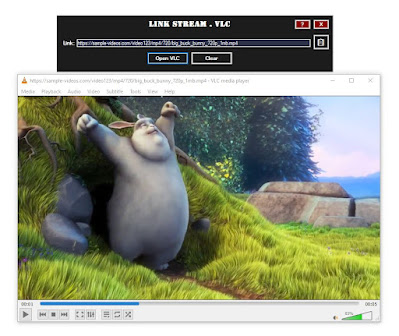
Link Stream .VLC

Image
We can stream any video file download link in VLC player without downloading the whole file. But the process is a bit complicated. Many normal user not even aware of this feature. For this reason I have developed this small tool (for windows users). This application helps you to stream any video file link in VLC without downloading the file.     Download from Github:  LinkStream.VLC Size: 30 KB No need to install just download and Use. How to Use: First copy a downloadable link of any video file and paste it into the Link Textbox. Then click Open in VLC button, that's it! VLC player will start streaming your video file. N.B.: 1. VLC player need to be installed in your computer. 2. File name must be included in the link. Enjoy ... ツ  **This app is completely free. Feel free to share with others.

How to send Email using command in Windows

Image
You can not use Command Prompt directly to send an email, but using PowerShell allows you to use the underlying .Net Framework, you can easily create and send an  e-mail from the command line.  #this works, just sends a simple email $smtpServer = "your.webmailserver.com" $smtpFrom = "fromadress@webmailserver.com" $smtpTo = "todaddress@webmailserver.com" $smtpCc = 'ccdaddress@webmailserver.com' $smtpSubject = "This is a test email" $username = "username" $password = "password" $body = "your mail body goes here" $smtp = New-Object -TypeName "Net.Mail.SmtpClient" -ArgumentList $smtpServer $smtp.Credentials = New-Object system.net.networkcredential($username, $Password); $smtpBody = $body $SMTPMessage = New-Object System.Net.Mail.MailMessage($smtpFrom, $smtpTo, $smtpSubject, $smtpBody) $SMTPMessage.cc.Add($smtpCc) $SMTPMessage.IsBodyHTML=$true $smtp.Send($SMTPMessage) You can run this sc...